Put your NVIDIA GPU to work on the Sogni Supernet
How to run a Sogni Fast Worker
Sogni Fast Worker turns a supported NVIDIA GPU into a node on the Sogni Supernet, rendering images, video and music for artists and earning from every job it completes. This is the complete guide: which card to run, the worker NFT, the worker images, disk and VRAM planning, the installer, the dashboard, the two income streams, staking, and tuning. For what a GPU is actually earning right now, read the companion forecast, What an Nvidia GPU earns on Sogni.
Which card to run: MiniMax H3 and the 32 GB cards
Any supported NVIDIA card with 16 GB or more can join the Fast Supernet, but the busiest queue on the network belongs to MiniMax H3, Sogni Unlimited's video model. Every H3 workflow needs 32 GB of VRAM, which means two cards most people can buy: the 96 GB NVIDIA RTX PRO 6000 Blackwell and the 32 GB GeForce RTX 5090. Unlimited Pro subscribers can run up to four video jobs at once, and every new subscriber adds to that queue, so 32 GB cards spend far less time idle than cards that can only serve stills. The pool pays by render units rather than job count, and H3 jobs are long, so a card that completes a few thousand of them out-earns a 24 GB card doing many times as many images.
For what these cards are earning, see What an Nvidia GPU earns on Sogni, a September forecast built from 133 measured ComfyUI workers. This guide covers how to set a worker up.
Which card, if you are choosing
- RTX 5090 (32 GB). Runs all eight MiniMax H3 workflows, Wan 2.2 at 720p+, LTX-2.3 dev, and everything below. The entry ticket to the H3 queue at a fraction of the price: the same queue and the same jobs, rendered 1.4–1.6× slower than on a PRO 6000.
- RTX PRO 6000 Blackwell (96 GB). Everything the 5090 does, plus full-quality Wan 2.2 above 720p (40 GB) and enough headroom that no model is ever skipped during downloads and model switches are rare. A 15-second standard H3 clip renders in about 8 minutes on this card at typical resolutions, H3 Turbo in about 2.
- Either way, use the CUDA 13 image. The installer selects
sogni/comfy-worker-cu13automatically on Blackwell with driver R580+, and it is 30–50% faster than the compatibility image. Speed is the scheduler's primary sort key (section 15), so this compounds.
Measured: a 15-second H3 i2v clip, card by card
| Resolution | H3 Turbo (4 steps) | Standard H3 (20 steps) | ||
|---|---|---|---|---|
| RTX 5090 | RTX PRO 6000 | RTX 5090 | RTX PRO 6000 | |
| 768×768 | 2.1 min | 1.3 min | 6.8 min | 5.1 min |
| 768×1024 / 1024×768 | 3.1 min | 2.0 min | 11.0 min | 8.0 min |
| 768×1344 (720p portrait) | 4.6 min | 3.0 min | 16.8 min | 12.3 min |
| 1344×768 (720p landscape) | 4.8 min | 3.1 min | 18.0 min | 12.5 min |
| All resolutions, median | 3.0 min | 1.9 min | 10.0 min | 7.8 min |
Median wall-clock render time per completed 15-second (362-frame, 24 fps) image-to-video job, from Sogni production telemetry, 24–27 August 2026, on the 1.0.179 worker; n = 4,342 Turbo and 991 standard jobs across the whole Fast network. The PRO 6000 is 1.4–1.6× faster job for job. For comparison, a 48 GB RTX PRO 5000 Blackwell runs the same Turbo clip in about 5 minutes and the standard one in about 12–16.
DEFAULT_WORKFLOW_ID=minimax-h3-fl2va-fp8_i2v_turbo so the busiest H3 workflow is hot-loaded before the first job arrives. The rest of this guide covers everything else, including how to pin your worker to H3 only.Contents
- Which card to run: MiniMax H3 and the 32 GB cards
- What a Fast Worker is (and the Mac alternative)
- How workers get paid: two income streams
- Reading your earnings on the dashboard
- Hardware checklist: GPU, RAM, disk, internet
- The worker images and what they serve
- Step 1: Create a Sogni account
- Step 2: Mint your Fast Worker NFT
- Step 3: Get your API key
- Step 4: Install Docker
- Step 5: Run the installer
- Step 6: Watch it work on the dashboard
- Step 7: Send yourself a test job
- Step 8: Opt in to Subscription Earnings
- Configuring the worker (.env reference)
- Disk space planning
- Getting more jobs: how the scheduler ranks you
- Claiming and staking
- Multi-GPU rigs and cloud hosts
- Updates and troubleshooting
- FAQ
What a Fast Worker is (and the Mac alternative)
The Supernet has two lanes. The Fast Supernet is the priority lane artists pay roughly double for, where a 1024×1024 SDXL render comes back in under five seconds and a batch of sixteen renders in parallel. It is only as fast as its slowest member, which is why it is restricted to a list of recent NVIDIA GPUs. The Relaxed Supernet is the cheaper lane, served today by Macs running Sogni Studio Pro's Worker Mode.
Sogni Fast Worker is the Windows and Linux application for the fast lane. It is a Docker container that runs in the background, downloads the models the network needs, connects to the Supernet over WebSocket and waits for jobs. You can run it 24/7 on dedicated hardware, part-time on a gaming PC while it sits idle, or on a cloud GPU platform such as Salad or Nosana that accepts custom Docker images.

| Fast Worker | Studio Pro Worker Mode | |
|---|---|---|
| Platform | Windows or Linux, Docker | macOS 14+, Apple Silicon, native app |
| Hardware | Supported NVIDIA GPU, 16 GB+ VRAM | Any Apple Silicon Mac (70 GB+ free disk recommended) |
| Network lane | Fast Supernet | Relaxed Supernet |
| Identity | One Fast Worker NFT per GPU, plus the account API key | Your Sogni account; no NFT needed |
| Models | Downloaded automatically by the worker image you choose | You pick and download the models you want to serve |
| Job types | Image, video, music, LLM (by image type) | Image models you have installed, plus ControlNets |
| Earnings | Real-time SOGNI per job, plus the optional subscription pool | Real-time SOGNI per job, plus the optional subscription pool |
| Leaderboard attribution | Per NFT token ID | Per account address |
You can run both. An account can hold Fast Workers and a Mac Worker at the same time, and accounts that run any worker get queue priority for their own first 500 image jobs each day when they switch back to making art. The Mac path is Studio Pro's Supernet → Enter Worker Mode and Earn menu; the Worker Mode docs cover it. This guide is about the Fast Worker.
How workers get paid: two income streams
There are two separate ways a job can pay you, and a worker can take both kinds.
| Spark / SOGNI-paid jobs | Unlimited subscription jobs | |
|---|---|---|
| Who sends them | Artists paying per render with Spark Points or SOGNI | Subscribers on Sogni Unlimited ($20/mo) or Unlimited Pro ($50/mo) |
| How you are paid | SOGNI settles to your worker in real time, per completed job | Points accrue to the monthly Worker Subscription Revenue Share Pool |
| Pool size | n/a | 51% of net subscription revenue for that UTC month, after processor fees, tax and refunds |
| Your share | The job's worker payout | Proportional to your render-Spark share of all subscription jobs completed that month |
| Opt-in? | On by default | Optional. Accept the terms at dashboard.sogni.ai/subscription-earnings |
| When you can claim | Any time once you pass the claim minimum shown on dashboard.sogni.ai | After the UTC month closes and reconciles; payouts are planned about 45 days after month end (September work pays around mid-November) |
| Paid in | SOGNI (or Premium Spark, or staked) | USDC to your Sogni wallet, above a $1 minimum, minus a $0.50 claim fee |
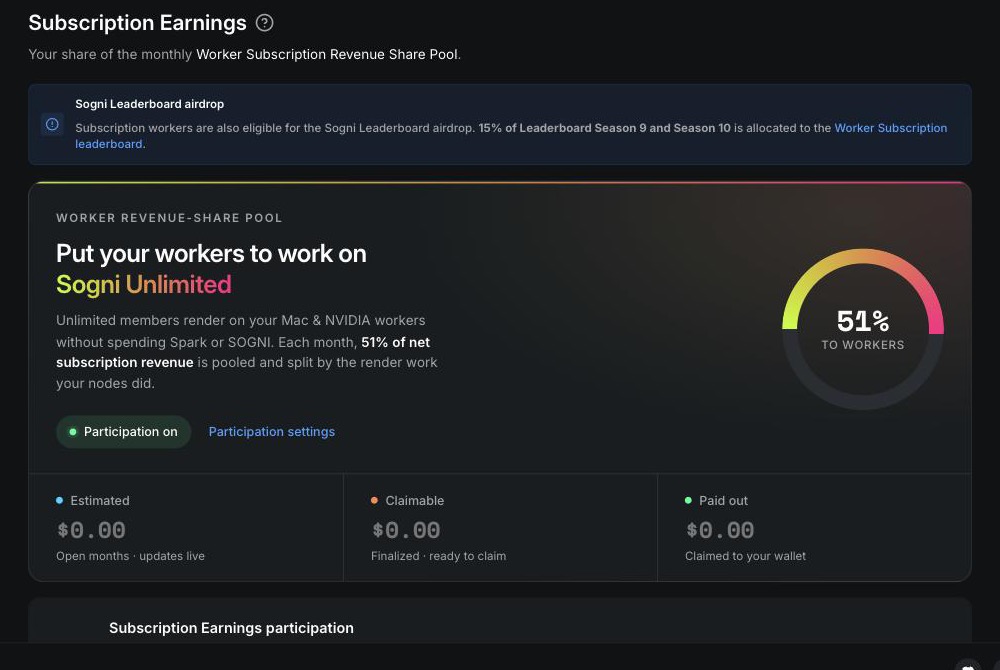
A few details that trip people up:
- Annual and prepaid plans are spread across the months they cover. A subscriber who pays for a year funds twelve monthly pools, not one — whether they paid by card, through an app store, or in USDC.
- Free trials contribute nothing until they convert to a paid charge.
- In-month figures are estimates. The leaderboard and dashboard show a running estimate based on accrued render-Spark and current revenue. The exact ledger figure lands when the month is reconciled across Stripe, Apple, Google Play and crypto.
- You cannot send yourself subscription work. Subscribers cannot target specific workers for subscription jobs, and self-matched jobs are excluded from pool credit.
- Fast Workers and Mac Workers both earn from the pool. Fast work rolls up to the NFT owner; Relaxed work is attributed to your wallet address. Final monthly claims roll up by wallet.
The full rules live in the Worker revenue share section of the Unlimited plan docs. If you want the economics behind why Sogni pays workers a revenue share instead of renting data-center GPUs, read Powering an Unlimited AI Economy That Works.
Reading your earnings on the dashboard
Once your worker is running, the dashboard splits every day’s work into the two income streams above. These are the two panels to watch:
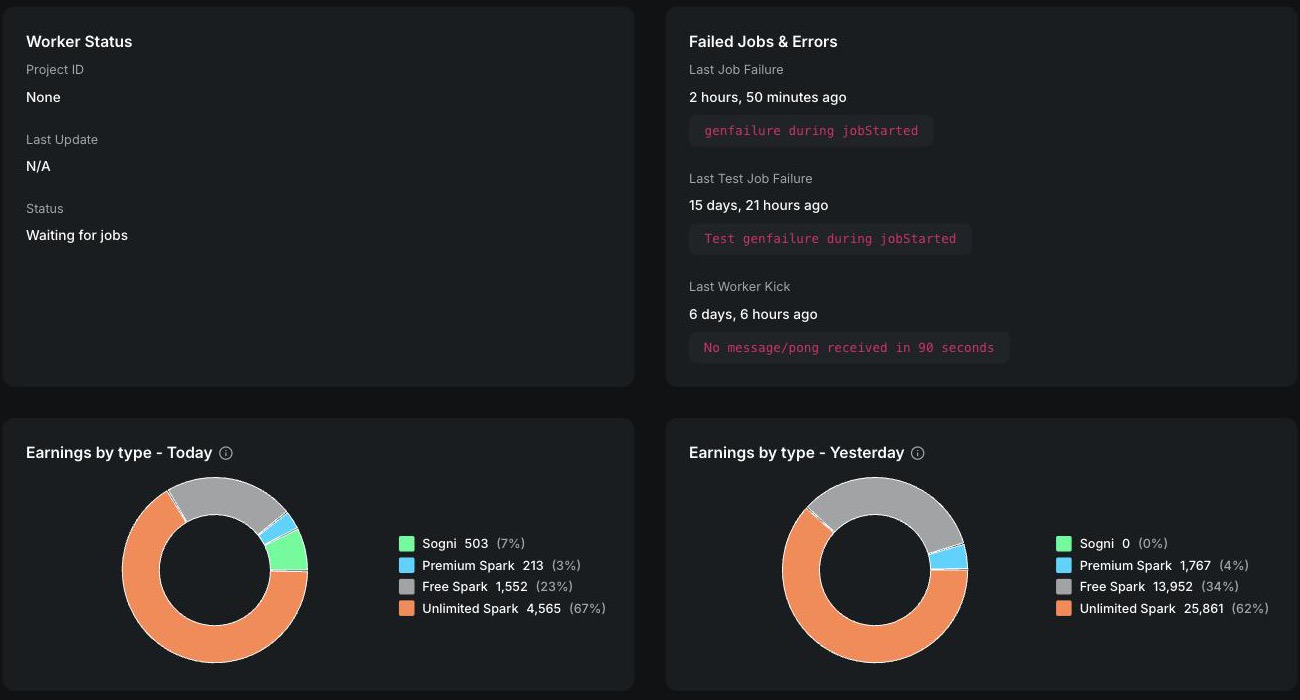
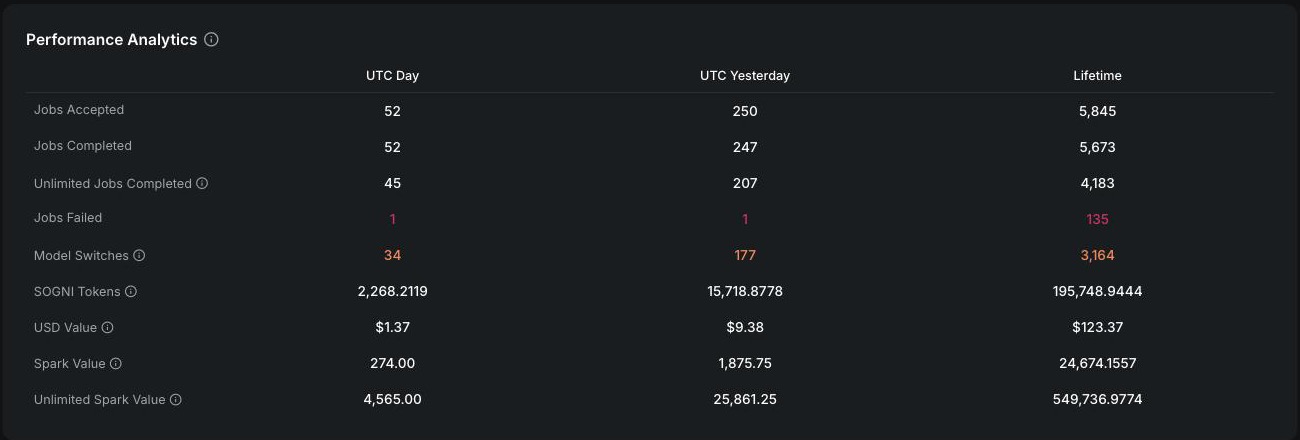
On a 32 GB card serving H3, most completed work is subscription-covered, so the pool is usually the larger stream and real-time SOGNI from Spark-paid jobs is a top-up; Spark-paid work pays more per render unit but is a small share of the volume. Two things decide where a worker lands: how many render units it completes, and what it is allowed to render. A 32 GB card serving H3 accrues render-Spark far faster than a 16 GB card serving stills. Section 15 covers how to move up.
Hardware checklist: GPU, RAM, disk, internet
GPU
Any recent NVIDIA GPU with at least 16 GB of VRAM is a candidate. The current supported list includes RTX 5090, RTX 4090, H100, RTX PRO 6000, RTX 5080, RTX 4080 Super, RTX 4080, RTX 4070 Ti Super, RTX 5070 Ti, RTX 3090 Ti, RTX 3090, RTX 6000 Ada, RTX 5000 Ada, RTX A6000, RTX A5000, L40S, H200, A100, B200, Tesla V100, RTX PRO 4000, RTX PRO 4500 and RTX PRO 5000. VRAM decides which workflows you are eligible for:
| VRAM | Unlocks |
|---|---|
| 16 GB | Krea 2 Turbo, Krea 2 identity editing, Dark Beast Krea 2, Z-Image and Z-Image Turbo, Chroma, Qwen Image 2512, FLUX.1 Schnell, non-XL Ace-Step 1.5 music. The Stable Diffusion worker also does well here. |
| 20 GB | Ace-Step 1.5 XL music (SFT and Turbo) |
| 24 GB | Wan 2.2 Lightning video below 720p, LTX-2.3 distilled video, Qwen Image Edit 2511, MiniMax Music 3. The LLM worker wants 24 GB+. |
| 32 GB | All eight MiniMax H3 and H3 Turbo video workflows, Wan 2.2 full and Lightning at 720p+, LTX-2.3 dev. The RTX 5090 is the entry point. |
| 40 GB+ | Wan 2.2 full-quality workflows at 720p and above |
| Video workflows | Workflow IDs | Min VRAM |
|---|---|---|
| MiniMax H3 / H3 Turbo (text, image, first/last-frame and reference to video) | minimax-h3-fl2va-fp8_t2v, _i2v, _flf2v, minimax-h3-ref2va-fp8_r2v, and the four _turbo variants | 32 GB |
| Wan 2.2 Lightning (T2V, I2V, S2V, Animate Move / Replace) | wan_v2.2-14b-fp8_*_lightx2v | 24 GB below 720p, 32 GB at 720p+ |
| Wan 2.2 full quality (T2V, I2V, S2V) | wan_v2.2-14b-fp8_t2v, _i2v, _s2v | 32 GB below 720p, 40 GB at 720p+ |
| LTX-2.3 distilled (T2V, I2V, A2V, IA2V, V2V) | ltx23-22b-fp8_*_distilled | 24 GB |
| LTX-2.3 dev | ltx23-22b-fp8_*_dev | 32 GB |
| LTX-2.5 distilled (T2V, I2V, A2V, IA2V, V2V) | ltx25-22b-int8_*_distilled | 24 GB class |
Published minimums from the worker docs and the live worker config, 27 August 2026. Because of speed optimisations, 24 GB cards are restricted to the Lightning Wan variants, and only cards with 40 GB or more receive 720p+ jobs on the full-quality Wan workflows.
| Image and music workflows | Workflow ID | Min VRAM |
|---|---|---|
| Krea 2 Turbo | krea2_turbo_fp8_scaled | 16 GB |
| Krea 2 identity edit (community v1.2 / Sogni v0.3) | krea2_identity_edit_v1_2, krea2_identity_edit_sogni_v0_3_alpha | 16 GB |
| Dark Beast Krea 2 and its identity edit | dark_beast_krea2_fp8, dark_beast_krea2_identity_edit_v1_2 | 16 GB |
| Z-Image / Z-Image Turbo / Dark Beast Z-Image Turbo | z_image_bf16, z_image_turbo_bf16, dark_beast_z_image_turbo_v9_bf16 | 16 GB |
| Chroma v.46 Flash / v48 Detail / Chroma1-HD | chroma-v.46-flash_fp8, chroma-v48-detail-svd_fp8, chroma1-hd_fp8_scaled | 16 GB floor |
| Qwen Image 2512 / Lightning | qwen_image_2512_fp8, qwen_image_2512_fp8_lightning | 16 GB |
| Qwen Image Edit 2511 / Lightning | qwen_image_edit_2511_fp8, qwen_image_edit_2511_fp8_lightning | 24 GB |
| FLUX.1 Schnell | flux1-schnell-fp8 | 16 GB floor |
| ACE-Step 1.5 SFT / Turbo | ace_step_1.5_sft, ace_step_1.5_turbo | 16 GB |
| ACE-Step 1.5 XL SFT / Turbo | ace_step_1.5_xl_sft, ace_step_1.5_xl_turbo | 20 GB |
| MiniMax Music 3 | minimax_music3 | 24 GB |
From the live worker config on 27 August 2026 where it sets a minimum, otherwise the 16 GB Fast Worker floor. If your card is under a workflow's minimum the worker skips it during downloads.
RAM
40 GB of system RAM for a bare-metal install, 30 GB per instance for a hosted container, and ideally 48 GB+ if you are hosting video models. Multi-GPU rigs need 30 GB per GPU (three GPUs, 90 GB). Too little RAM shows up as instability and fewer jobs, not a clean error.
Disk
This is the number that surprises people. A Comfy Worker that auto-downloads every supported workflow needs about 470 GB of model cache on 32 GB+ cards and about 435 GB on 24 GB cards, because the worker skips files above the 24 GB-class limit. Those are July 2026 figures and they only grow. Budget extra for the Docker image, temporary downloads, logs and the OS. Section 14 has the full breakdown and how to shrink it.
Internet
5–10 Mbps minimum, 10 Mbps+ for the first-time model downloads. Connection speed affects job priority, because the Supernet measures your wall-clock time including transfer.
The worker images and what they serve
There are three Fast Worker types, and you pick one when you run the installer. They are Docker images published under sogni/ on Docker Hub, tagged :latest so they auto-update. Versions and compressed sizes are as reported by the Sogni API and Docker Hub on 27 August 2026.
| Worker | Image | Serves | Best for |
|---|---|---|---|
| Comfy Worker (CUDA 13) | sogni/comfy-worker-cu13:latestv1.0.179 · 7.6 GB compressed |
MiniMax H3, Wan 2.2, LTX-2.3 and LTX-2.5 video; Krea 2 Turbo and Krea 2 identity editing, Z-Image, Chroma, Qwen Image 2512 and Qwen Image Edit 2511, FLUX.1 Schnell; MiniMax Music 3 and Ace-Step 1.5 / 1.5 XL music; user LoRAs | RTX 4090-series, RTX 5090, RTX PRO 6000 and other Blackwell GPUs on NVIDIA driver R580 or newer. Typically 10–20% faster on a 4090 and 30–50%+ faster on Blackwell. The installer picks this automatically when every visible GPU qualifies. |
| Comfy Worker | sogni/comfy-worker:latestv1.0.179 · 8.5 GB compressed |
Every other supported GPU, and any system on an older driver. | |
| Stable Diffusion Worker | sogni/sogni-stable-diffusion-worker:latestv31 · 23.7 GB compressed |
95+ Stable Diffusion 1.x / SDXL community checkpoints, including the SDXL Turbo models behind Photobooth, plus 15 ControlNets | Maximum model variety, and a good fit for a 16 GB card. Ships with one model; hosting everything is optional and needs 250 GB+. |
| LLM Worker | sogni/sogni-llm-worker:latestv1.0.9 · 2.4 GB compressed, plus model weights |
Qwen3.6 35B A3B with vision: Sogni Chat, Sogni Intelligence, vision and OCR, Sogni Tools | 24 GB+ cards that want steady text and vision work instead of rendering. |
You can switch between worker types at any time by rerunning the installer. It detects the existing setup, asks which image you want, and keeps the data-models/ cache so nothing redownloads. Worker analytics and leaderboard history stay with the NFT, so you can even move to a new machine and keep your standing.
PREFERRED_WORKFLOW_IDS pinned to the 16 GB image workflows. A second card you want to keep busy with text: LLM Worker.1Create a Sogni account
Sign up free at app.sogni.ai, or use the account you already have from the Mac or iOS apps. Every account gets a Sogni wallet on Base automatically; that wallet is where your NFT lives and where earnings land. Worker earnings, NFTs, staking and subscription payouts are all managed from dashboard.sogni.ai with the same login.
2Mint your Fast Worker NFT
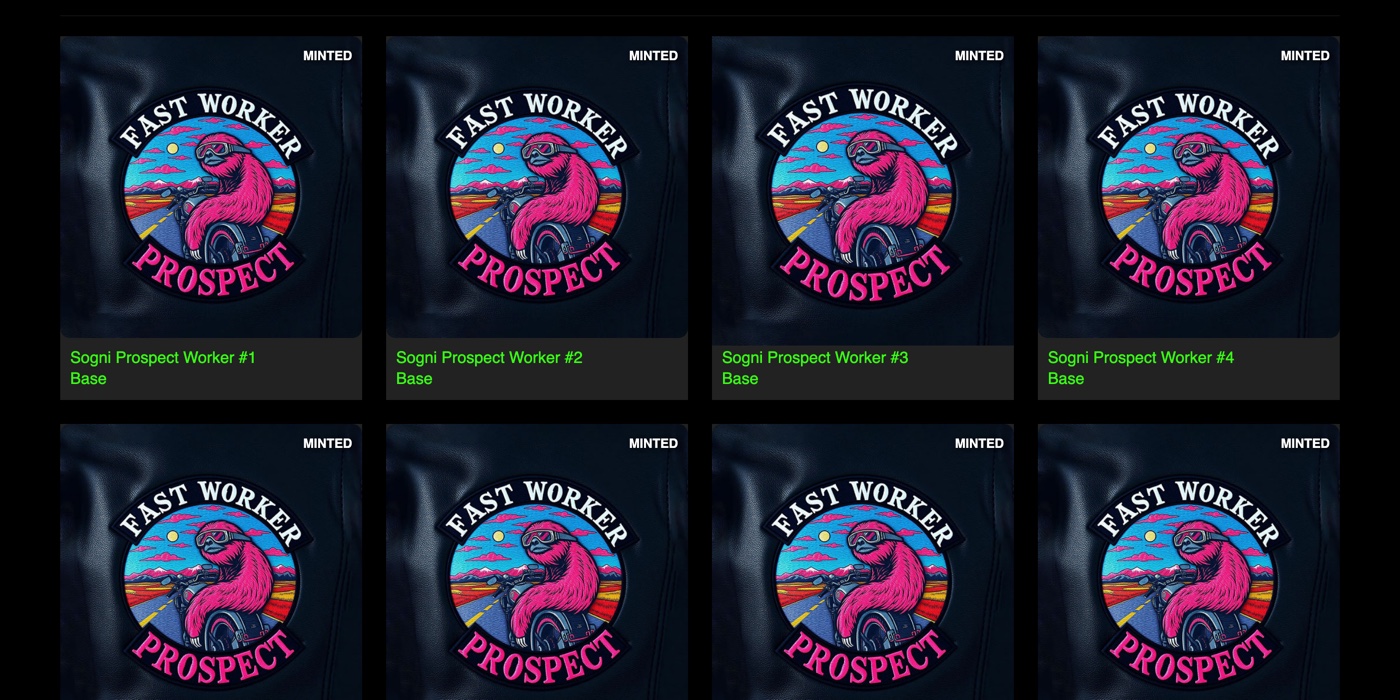
Each GPU on the Fast Supernet is identified by a Sogni Prospect Worker NFT on Base. The network uses the token ID to build reputation, track analytics and attribute leaderboard rows, which is why one NFT cannot run two workers: they would keep kicking each other off during authentication.
- Go to nft.sogni.ai and log in with your Sogni account.
- Open the NFT Collections Explorer tab and set the Status filter to Available.
- Mint a Prospect Worker NFT. It is paid in ETH on Base at the price shown on the site, 0.0125 ETH in late August 2026; the price is set on-chain and can rise as demand grows. Deposit that amount plus a little ETH for gas to your Sogni wallet address, complete the human check, and mint. New batches are released at intervals and go quickly; the supply is paced so the number of workers grows with demand, which keeps job rates healthy for everyone already online.
- Note the Token ID. You will enter it into the installer as
NFT_TOKEN_ID.
Rules worth knowing:
- One mint per address. The site currently will not let an address that already holds a Prospect NFT mint another. For more workers, create another Sogni account per worker (the same email is fine), then transfer all the NFTs into one account if you want to run them together.
- Transfers are supported. The NFT's detail view under My NFTs has Owner Controls that accept an address, ENS name or Sogni username. Job history, analytics and the NFT-level revenue-share entry travel with the token, so the receiving account inherits that worker's rank and score.
- Prospect vs Upgrade. The Prospect is your starter licence. The Fast Worker Upgrade NFT unlocks earning at full speed in Fast mode and is gated by performance and reputation; the app prompts you when you are eligible.
- Etherlink bonus. Bridging your Worker Licence NFT to Etherlink unlocks an automatic 2% settlement bonus on earnings. Details in the NFTs docs.
3Get your API key
Open My NFTs on nft.sogni.ai, click your Prospect Worker NFT and choose View API Key. The same key is also shown under the API Key tab of dashboard.sogni.ai. Copy it somewhere safe.
The key belongs to the account, not the NFT. Every worker you run under that account uses the same API_KEY with a different NFT_TOKEN_ID. Resetting it generates a new key and invalidates the old one for all of them at once, so update every worker's .env if you do.
4Install Docker
Windows: install Docker Desktop. Make sure it is running before you start the worker; the Windows installer registers a startup task that waits for Docker Desktop after sign-in.
Linux: install Docker Engine and the NVIDIA Container Toolkit, then confirm the container can see your GPU:
docker run --rm --gpus all nvidia/cuda:12.8.0-base-ubuntu22.04 nvidia-smiIf that prints your card, you are ready. Rootful Docker is the easier path; the installer detects rootless Docker and offers to expand the subordinate ID ranges it needs.
5Run the installer
Download the installer for your OS and unzip it into the folder you want the worker to live in. That folder will also hold the model cache, so put it on your biggest, fastest drive.
Windows: double-click worker-install.bat, answer the prompts, then double-click worker-start.bat.
Linux:
chmod +x *.sh
./worker-install.sh     # pick a worker type, enter API_KEY and NFT_TOKEN_ID
./worker-start.sh       # checks for updates, pulls the image, starts the container
The installer asks for three things: the worker type (Comfy, Stable Diffusion or LLM), your API key and your NFT token ID. On a Comfy install it inspects your GPUs and driver and selects the CUDA 13 image when every visible card qualifies. It writes a .env file and a docker-compose.yaml, pulls the image, and the worker starts downloading its first model. The worker connects and starts taking jobs as soon as one complete model is on disk, so the first run typically takes 10–30 minutes before you see a job, and every later start is fast.
| Windows | Linux | What it does |
|---|---|---|
worker-install.bat | ./worker-install.sh | First-time setup, or switch worker type later |
worker-start.bat | ./worker-start.sh | Check for installer and image updates, pull, start |
worker-stop.bat | ./worker-stop.sh | Stop the worker (on Windows this also suppresses auto-start until you start it again) |
| — | ./worker-restart.sh | Preflight checks and recreate the container(s) |
worker-debug.bat | ./worker-debug.sh | Tail the worker logs |
worker-generator.bat | ./worker-generator.sh | Generate one .envN per GPU for multi-GPU rigs |
worker-uninstall.bat | ./worker-uninstall.sh | Stop containers and remove Sogni images (your model cache stays unless you delete the folder) |
Two folders appear next to the scripts and persist across restarts: data/ (config and caches, about 5 GB) and data-models/ (everything the worker downloads). Both are Docker volumes mapped in docker-compose.yaml, so you can point them at another drive or at an existing model library.
worker-stop.bat, it stays stopped until you run worker-start.bat.6Watch it work on the dashboard
Open dashboard.sogni.ai/fast-workers. Every NFT under your account gets a tile showing its GPU, image version and the models it has loaded, with a Fast / Relaxed toggle for accounts that run both. Click a tile for the live view:
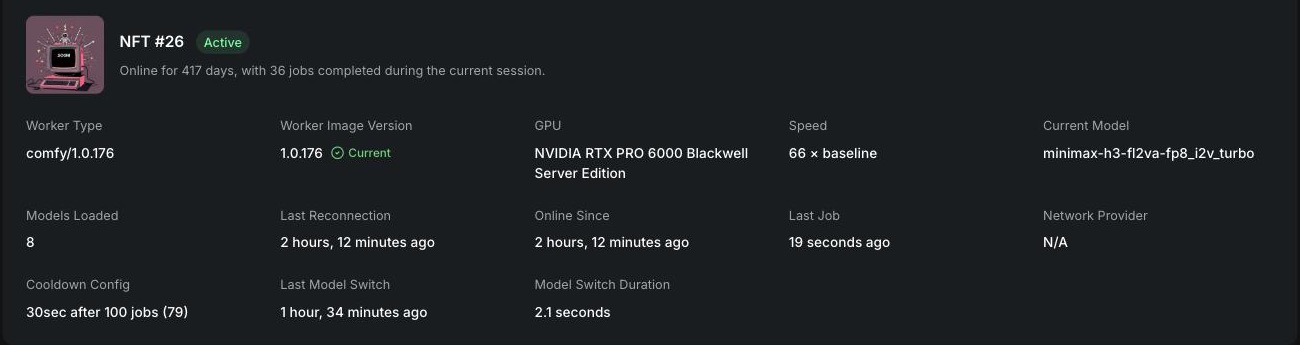
What to read on this page:
- Worker Type, Worker Image Version, GPU, Speed. The version badge says Current or Upgrade required. Speed is your speed vs baseline, the multiplier the scheduler uses to rank you against other workers (section 15). A new worker shows nothing here until the Supernet has run a test job on it.
- Current Model, Models Loaded, Last Model Switch, Model Switch Duration. Switching large video models takes time you are not rendering; if these numbers are high, consider pinning workflows (section 13).
- Cooldown Config. Your
COOLDOWN_EVERY_X_JOBS_*settings and how many jobs until the next pause. - Worker Status. Waiting for jobs is what a healthy idle worker says. If the worker has stopped taking work because of a cooldown or a penalty, it is spelled out here.
- Failed Jobs & Errors. Last job failure, last test-job failure and Last Worker Kick, which is where you find out you were disconnected for a missed heartbeat, an unsupported version or repeated test-job failures.
- Earnings by type. Today and yesterday, split into SOGNI, Premium Spark and Free Spark (all settle in real time) and Unlimited Spark (pool credit).
- Performance Analytics. Jobs accepted, completed, failed and Unlimited-covered, model switches, SOGNI earned, its USD value, and Spark and Unlimited Spark value for the UTC day, yesterday and lifetime.
- Daily Worker Statistics. A 7 / 30 / 90-day view with Jobs, Earnings, Reliability and Efficiency tabs, and a per-day chart that separates token-paid from Unlimited-covered completions.
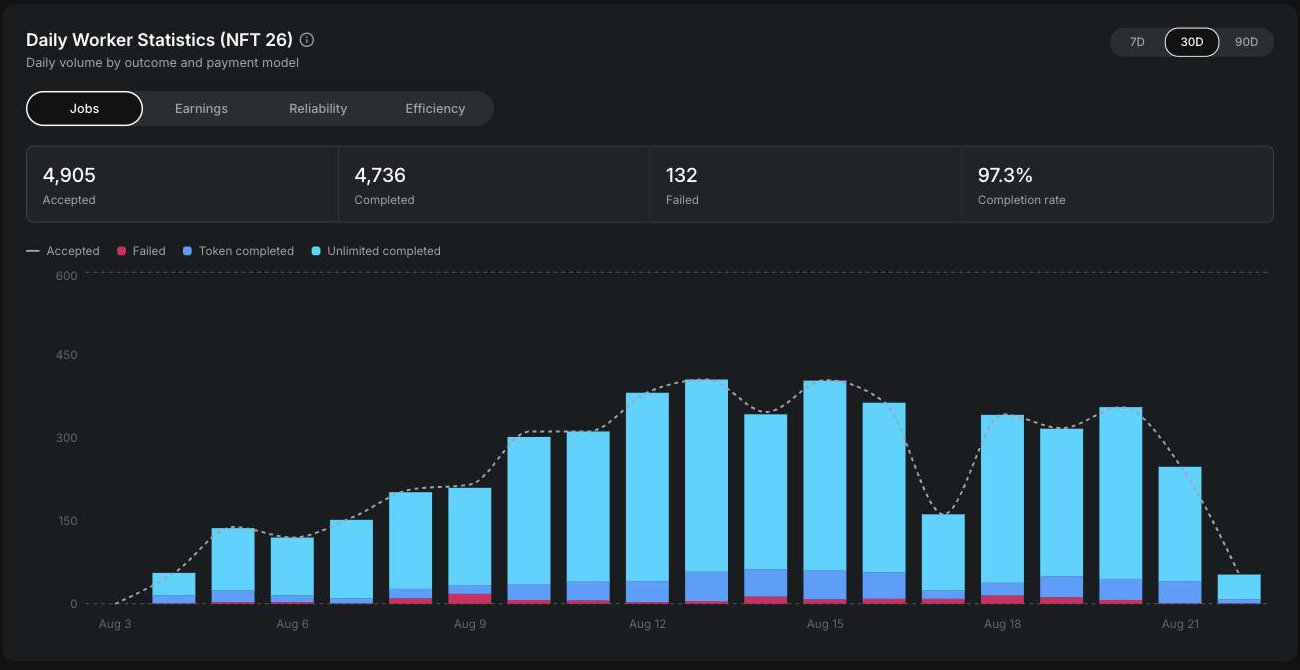
For workers you own that are online on a current build, the page also offers Worker care: a live health snapshot from the machine (GPU, memory, disks, uptime, connectivity) and bounded, source-redacted runtime logs, searchable for things like OOM, CUDA or disk full. Logs stay on your worker; you can read them here, and Sogni support can also read them remotely to diagnose a problem. When a newer worker version is published, supported online Comfy workers get an Upgrade worker button: the managed updater downloads and verifies the new image, stops accepting new jobs, waits for in-flight work and downloads to finish, recreates the container and reconnects.
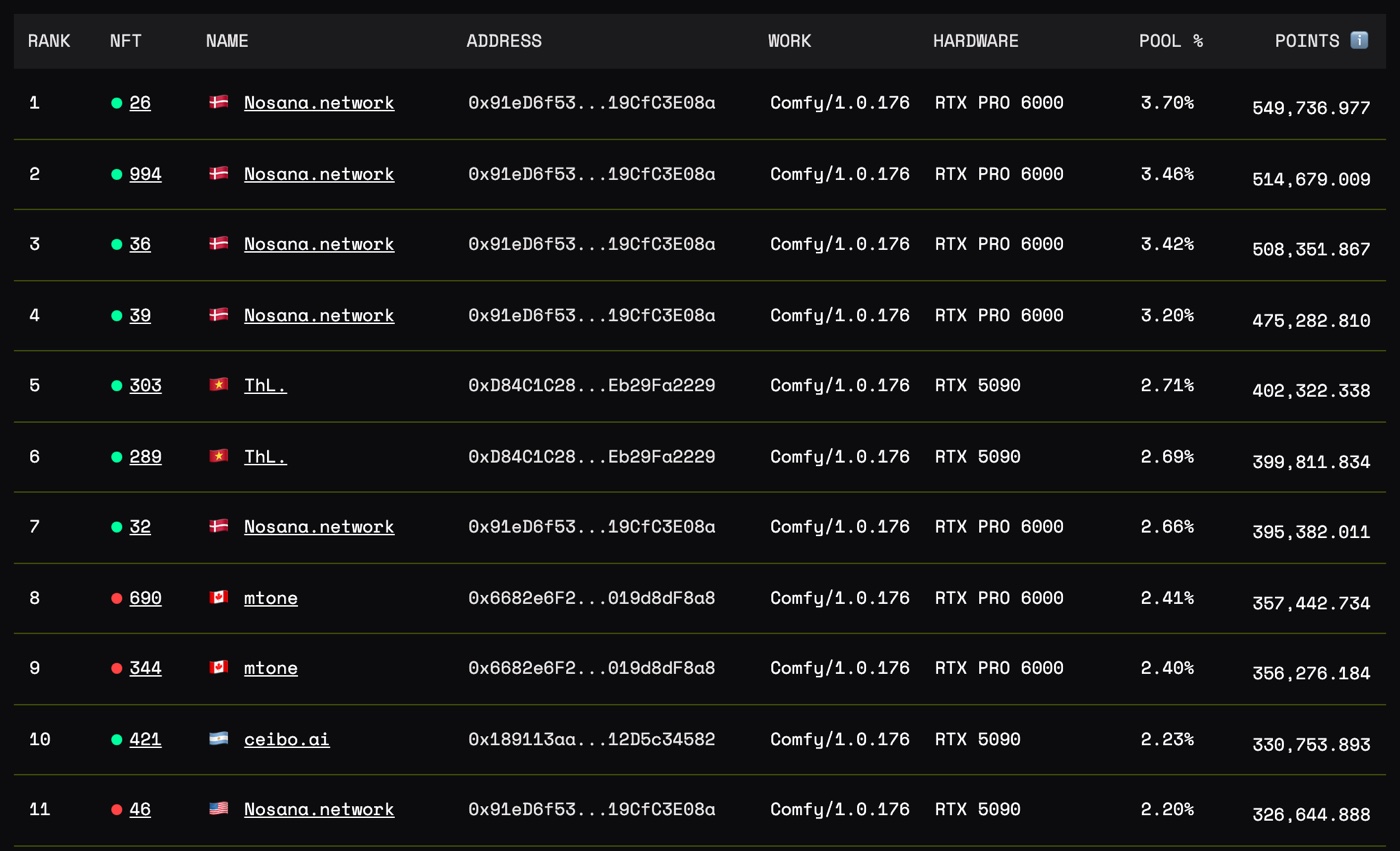
Everything on these pages comes from public analytics endpoints you can call yourself, for example lifetime worker stats for an address: https://api.sogni.ai/v1/analytics/lifetime?address=0x…&keys=jobCompleteWorker,renderEarnActualSogniWorker,jobErrorWorker, a single UTC day with /v1/analytics/day/2026-08-20?address=0x…, or one NFT's day with /v1/analytics/day/nft/26?date=2026-08-20.
7Send yourself a test job
You do not have to wait for the network to find you. Worker targeting lets an artist route a job to a specific worker by username or NFT token ID, straight from the prompt in any Sogni app:
a lighthouse at dusk, film grain --workers=1234--preferred-workers prefers but does not require; --skip-workers excludes. Targeted jobs need Premium Spark or SOGNI (and earn base artist points, not the paid multiplier), and they do not affect your speed score. Watch the job land in the dashboard's job history. The same flags work through the SDK if you want to build something that only renders on your own machines.
8Opt in to Subscription Earnings
Per-job SOGNI settlement is on from the moment you connect. Subscription jobs are not: until you accept the terms, your worker will not be sent Unlimited-plan work and will not accrue pool points.
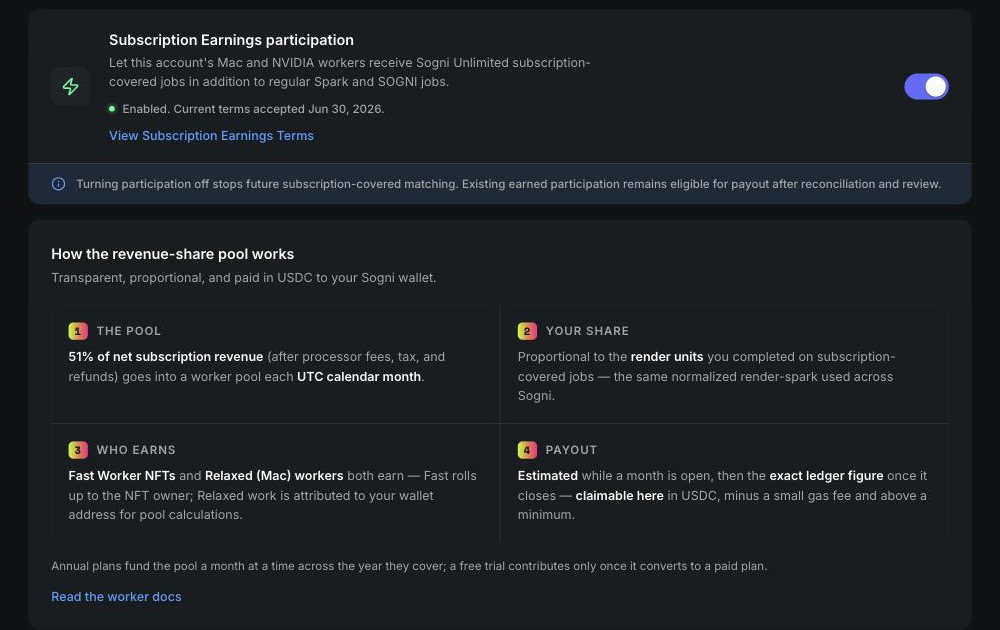
- Open dashboard.sogni.ai/subscription-earnings.
- Read the Subscription Earnings Terms, then turn on Subscription Earnings participation and choose Accept and enable.
- Participation is per account. Every eligible Fast Worker NFT and Mac Worker under the account starts receiving subscription-covered jobs.
The same page tracks each UTC month as it moves through Open, Reconciling and Distributed, shows your estimated share while the month is open and the exact figure once it closes, and has the Claimable earnings button that pays all finalised months together in USDC to your Sogni wallet.
Configuring the worker (.env reference)
The installer writes sensible defaults; everything below is optional. Edit .env in the install folder and restart the worker (worker-stop then worker-start, or docker compose down then docker compose up -d). On a multi-GPU rig, put the setting in every .envN file.
| Setting | Worker | What it does |
|---|---|---|
PREFERRED_WORKFLOW_IDS= | Comfy | Comma-separated list of workflow IDs to host. Models download in the order listed, you only receive jobs for those workflows, and anything invalid or over your VRAM is skipped. Leave empty to host everything your VRAM allows. The live catalogue with dependencies is at api.sogni.ai/v1/worker/config/comfy. |
DEFAULT_WORKFLOW_ID= | Comfy | The workflow to hot-load on boot so it is ready before the first job, for example minimax-h3-fl2va-fp8_i2v_turbo. |
MAX_MODEL_FOLDER_SIZE_GB=300 | Comfy, SD | Cap on the model folder. Automatic downloads stop before exceeding it; files already on disk keep serving. 0 on Comfy means no downloads at all. |
DISABLE_AUTOMATIC_DOWNLOADS=1 | All | Master switch: no workflow model downloads and no on-demand LoRA downloads. The worker serves only what is already on disk and reports its inventory so jobs needing missing files route elsewhere. |
DISABLE_LORA_DOWNLOADS=1 | Comfy | Keep workflow downloads on but stop fetching user-selectable LoRAs you do not already have (about 5 GB for the full set in early August 2026). |
DISABLE_SPICY_MODELS=1 | Comfy | Opt out of hosting mature or uncensored model packs (LTX-2.3 10Eros, the Dark Beast image models). The worker neither downloads nor advertises them, even if the files are present. purge additionally deletes files used only by spicy packs on the next start; shared dependencies are kept. |
COOLDOWN_EVERY_X_JOBS_COUNT=100 | All | Take a cooldown after every N successful jobs. 0 means the default of 100. |
COOLDOWN_EVERY_X_JOBS_SEC=30 | All | How long each cooldown lasts. The worker stays connected and takes no new jobs; there is no priority penalty afterwards. |
DATA_DOG_API_KEY= | All | Optional key for shipping debug logs to Sogni's Datadog if support asks. |
AUTO_DOWNLOAD_TO_MIN_MODEL_COUNT=6 | SD | Download popular models one at a time until this many are hosted, then keep downloading only when the network asks. 0 disables runtime downloads. |
PREFERRED_MODEL_IDS= | SD | Host exactly these Sogni model IDs (the model list has every ID and download link). |
DEFAULT_MODEL_ID= | SD | The model to load on boot, e.g. coreml-sogniXLturbo_alpha1_ad. |
Download policy on the Comfy Worker, in one table:
| Configuration | Workflow model downloads | Missing user LoRAs | Cached workflows and LoRAs |
|---|---|---|---|
| Default | Allowed | Allowed | Served |
DISABLE_LORA_DOWNLOADS=1 | Allowed | Blocked | Served |
DISABLE_AUTOMATIC_DOWNLOADS=1 | Blocked | Blocked | Served |
MAX_MODEL_FOLDER_SIZE_GB=0 | Blocked | Blocked | Served |
docker-compose.yaml knobs
restart: unless-stoppedstarts the worker with Docker on boot. Comment it out if you only want to run on demand.pull_policy: alwayschecks Docker Hub for a newer:latestevery start. Leave it on; running an unsupported version gets you disconnected../data:/dataand./data-models:/data-modelsare the persistent volumes. Remap them to move the cache to another drive or share a model folder with an existing Automatic1111 install.
Disk space planning
Worst case first, then how to trim it. For a single Comfy Worker that hosts everything:
| Item | 32 GB+ GPU | 24 GB GPU |
|---|---|---|
| Comfy model cache, all supported workflows (July 2026) | ~470 GB | ~435 GB |
| Docker image on disk (pulled, uncompressed) | roughly 2–3× the 7.6–8.5 GB compressed download; plan 20 GB | |
data/ config and caches | ~5 GB | |
| Temporary downloads, partial files, logs | Leave 30–50 GB of headroom | |
| User LoRA library | ~5 GB and growing | |
| Comfortable budget | ~600 GB | ~550 GB |
The Stable Diffusion Worker is lighter: one bundled model plus the 15 ControlNets by default, and 250–300 GB only if you choose to host the full library. The LLM Worker needs the 2.4 GB image plus its model weights.
Ways to shrink the footprint on the Comfy Worker:
- Pin workflows.
PREFERRED_WORKFLOW_IDSis the biggest lever. A card pinned to the eight H3 workflows downloads a fraction of the full cache. Note that almost every Wan 2.2 workflow shares the VAE and text encoder but loads about 28 GB of different transformer weights, even between text-to-video and image-to-video, so two Wan variants cost nearly twice the disk of one. - Cap the folder with
MAX_MODEL_FOLDER_SIZE_GB. - Skip LoRAs with
DISABLE_LORA_DOWNLOADS=1. - Purge spicy packs with
DISABLE_SPICY_MODELS=purgeif you do not want to host them. - Delete
data-models/at any time to reclaim everything; the worker redownloads on demand.
Put the cache on NVMe if you can. Model switches read tens of gigabytes, and the dashboard's Model Switch Duration is time you are not rendering.
Getting more jobs: how the scheduler ranks you
The Supernet's job matcher is deliberately simple, and it is worth knowing exactly what it rewards. When jobs are waiting, idle workers are sorted and offered work in this order:
- Speed vs baseline, highest first. Every completed job updates a rolling measurement of how fast you rendered compared with the expected time for that model on reference hardware. This single number is the primary sort key. Hardware model is not used directly; what you actually deliver is.
- Longest idle first among workers with equal speed, then longest connected as the final tiebreaker.
On top of that ordering, jobs go first to workers that already have the model hot-loaded in VRAM, and only then does the matcher ask other workers to switch models, starting with models that have users waiting and nobody serving them. New workers with no speed score get a test job before real work, and the network also runs periodic test jobs; repeated test failures get a worker kicked. A job that completes implausibly fast triggers a 20-minute speed-anomaly cooldown and a re-test.
If you run a 32 GB+ card for H3
With 32 GB or more nothing H3 is skipped, and on the stock Comfy Worker image the scheduler's routing alone tends to keep these cards on H3 most of the time. If you would rather pin the card to H3 explicitly, so it never spends time switching to an image model, this is the .env to use:
# Hot-load the volume H3 workflow before the first job
DEFAULT_WORKFLOW_ID=minimax-h3-fl2va-fp8_i2v_turbo
# Serve only the eight MiniMax H3 workflows; every other workflow is skipped
PREFERRED_WORKFLOW_IDS=minimax-h3-fl2va-fp8_i2v_turbo,minimax-h3-ref2va-fp8_r2v_turbo,minimax-h3-ref2va-fp8_r2v,minimax-h3-fl2va-fp8_i2v,minimax-h3-fl2va-fp8_t2v_turbo,minimax-h3-fl2va-fp8_flf2v_turbo,minimax-h3-fl2va-fp8_t2v,minimax-h3-fl2va-fp8_flf2v
The trade-off is that a pinned worker is idle whenever the H3 queue is empty, which this month has not been often. Leaving PREFERRED_WORKFLOW_IDS unset keeps the card eligible for everything and lets the hot-loaded-model preference do the steering.
For every card, in order of impact:
- Use the CUDA 13 image if your card and driver qualify. 10–20% on a 4090 and 30–50%+ on Blackwell goes straight into your speed score.
- Keep the GPU free. Casual use is fine; gaming or anything else that touches the GPU drags your measured speed down and the scheduler deprioritises you hard. Stop the worker for heavy sessions and start it again after.
- Hot-load the workflow that is busiest for your tier with
DEFAULT_WORKFLOW_ID, and narrowPREFERRED_WORKFLOW_IDSso you stop paying model-switch time on video models you rarely get. A worker that is always ready on a popular model catches more of the hot-loaded assignments. - Feed it. 40 GB+ RAM, a fast NVMe cache and 10 Mbps+ upload all show up in wall-clock time.
- Tune cooldowns to your cooling, not the other way round. Thermal throttling is a speed penalty the scheduler cannot tell apart from a slow card.
- Stay current. Leave
pull_policy: alwayson and accept managed upgrades; an unsupported version is disconnected outright. - Hold the right NFT. The Fast Worker Upgrade NFT unlocks full-speed earning, and bridging the licence to Etherlink adds 2% on settlement.
- More VRAM, more pool. If you are choosing hardware, 32 GB is the line that unlocks MiniMax H3 and full-resolution video, which are the render-Spark-heavy jobs the subscription pool rewards.
Claiming and staking
Per-job SOGNI accumulates in your worker's account contract and shows under Claim worker earnings on dashboard.sogni.ai. You have three ways to take it:
- Claim sends SOGNI to your account wallet. From there you can send it to any EVM address on Base or Etherlink.
- Claim as Premium Spark converts earnings into Premium Spark for your own renders.
- Stake earnings locks the claimed tokens into the current staking season, and the Auto-claim and stake daily option does it for you every day.
Staking
Staking on Sogni is about Staking Power, which ranks wallets on the Staking leaderboard for a share of each six-week season's SOGNI airdrop. Power is tokens multiplied by the number of weekly epochs committed raised to the power of 1.5, accrued by the second: 100 SOGNI staked for one week is 100 power, for six weeks it is about 1,470. Committing early and for the whole season is rewarded exponentially rather than linearly.
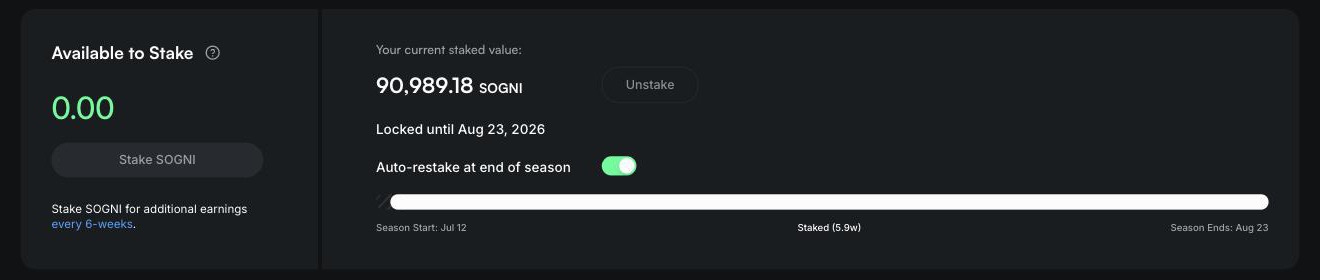
- Stake from the dashboard's Stake SOGNI button whenever you have an available balance, including freshly claimed worker earnings. Additional stakes earn power independently for the remaining time in the season.
- One lock per wallet, no early unstaking, and no new staking during the last week of a season. Everything unlocks at the end of the season, and Auto-restake at end of season rolls it straight into the next one.
- Some seasons add an extra prize pool for SOGNI staked on Etherlink; check the current leaderboard terms.
All of it, worker earnings, staking, airdrop claims and subscription payouts, lives on the same dashboard. The Staking SOGNI docs have the full mechanics.
Multi-GPU rigs and cloud hosts
Several GPUs in one machine
Each GPU runs its own copy of the worker with its own NFT. The first instance is the primary and handles model downloads; the others watch the shared model folder, so nothing downloads twice. Budget 30 GB of RAM per instance.
./worker-generator.sh                    # one .env0, .env1, … per detected GPU + docker-compose-generated.yml
# edit each .envN: same API_KEY, a different NFT_TOKEN_ID
./worker-start.sh                        # the lifecycle scripts prefer the generated compose file when it exists
docker compose ps                        # health of every instance
docker compose -f docker-compose-generated.yml logs -f worker0
The generator picks the CUDA 13 image only when every visible GPU qualifies. Rerunning worker-install.sh later detects the multi-GPU layout, validates it and offers to reuse it rather than rewriting anything.
Salad, Nosana and other GPU clouds
Salad hosts a Sogni Fast Worker recipe: pick it under Recipes, choose the worker type, paste your API key and NFT token ID, leave replicas at 1 and deploy. Nosana is also well tested. For any other platform that can run a GPU container with environment variables:
- Image:
sogni/comfy-worker-cu13:lateston eligible R580+ Ada or Blackwell hosts, otherwisesogni/comfy-worker:latest(or the Stable Diffusion image). - Resources: 4 vCPU, 38 GB RAM, the largest disk the platform offers (see section 14),
shm-size8g if available, and one replica per container group so each worker gets its own NFT. - Health probes (optional, the worker has its own fallback): startup
HTTP /startupon port 8000, initial delay 90 s, period 5 s, failure threshold 120; livenessHTTP /livenesson port 8000, initial delay 90 s, period 10 s, timeout 30 s, failure threshold 6. - Environment:
API_KEY,NFT_TOKEN_ID, and any of the.envsettings above. - Pinned versions: platforms that require an immutable tag can read the current versioned image from /v1/worker-images/comfy, /v1/worker-images/comfy?cuda=13 or /v1/worker-images/stable-diffusion/full. If you pin, you own re-pinning when the minimum version moves.
- Regions: the official Salad and Nosana templates already exclude the geo-blocked countries (Cuba, Iran, North Korea, Syria and Russia among them). On other platforms, apply the approved-country list from the FAQ to avoid provisioning churn.
Updates and troubleshooting
- Updates are automatic. Every start pulls the latest image, and the bundled health probe checks periodically while running. To force one, stop and start. Do not pass
--no-updateunless you mean it. - "Upgrade required" on the dashboard means a newer build is published. Use the Upgrade worker button when it is offered; otherwise stop and start from the install folder. Allow a few minutes and confirm the version badge says Current.
- Kicked for an unsupported version: the health probe normally restarts and upgrades on its own. If it stays offline, check
docker-compose.yamlstill points at a:latesttag, then stop and start. On a cloud host that caches images, edit the image source, re-enter the same path and redeploy to force a fresh pull. - No jobs arriving while the dashboard says Waiting for jobs: check Speed vs baseline is populated (a new worker needs its test job first), check Cooldown Config and Worker Status for a pause or penalty, then look at Last Worker Kick.
- Logs:
worker-debuglocally, or the dashboard's Worker care panel for a health snapshot and searchable runtime logs. - GPU not visible to Docker: install the NVIDIA Container Toolkit, restart Docker, and rerun the
nvidia-smicontainer test from step 4. - Help: the Sogni Discord or [email protected].
FAQ
Can I use the PC while the worker runs?
Can I run more than one worker from one account?
NFT_TOKEN_ID. Each worker still appears separately on the leaderboard by token ID.Do I have to host mature-content models?
DISABLE_SPICY_MODELS=1 (or purge to also delete the files) and your worker will neither download nor advertise those packs. This is a host-level choice and separate from the per-job sensitive-content filter artists control.Is it safe?
What happens to my rank if I move the NFT to another account?
Is there a minimum I am guaranteed to earn?
Mint the NFT, run the installer, watch the first H3 job land.
Beyond the NFT mint, everything in this guide is free. The worker connects as soon as its first model is on disk, and the dashboard shows every job from then on. Running a fleet, or a datacenter with Blackwell capacity to spare? Email [email protected] and we will help you onboard directly.