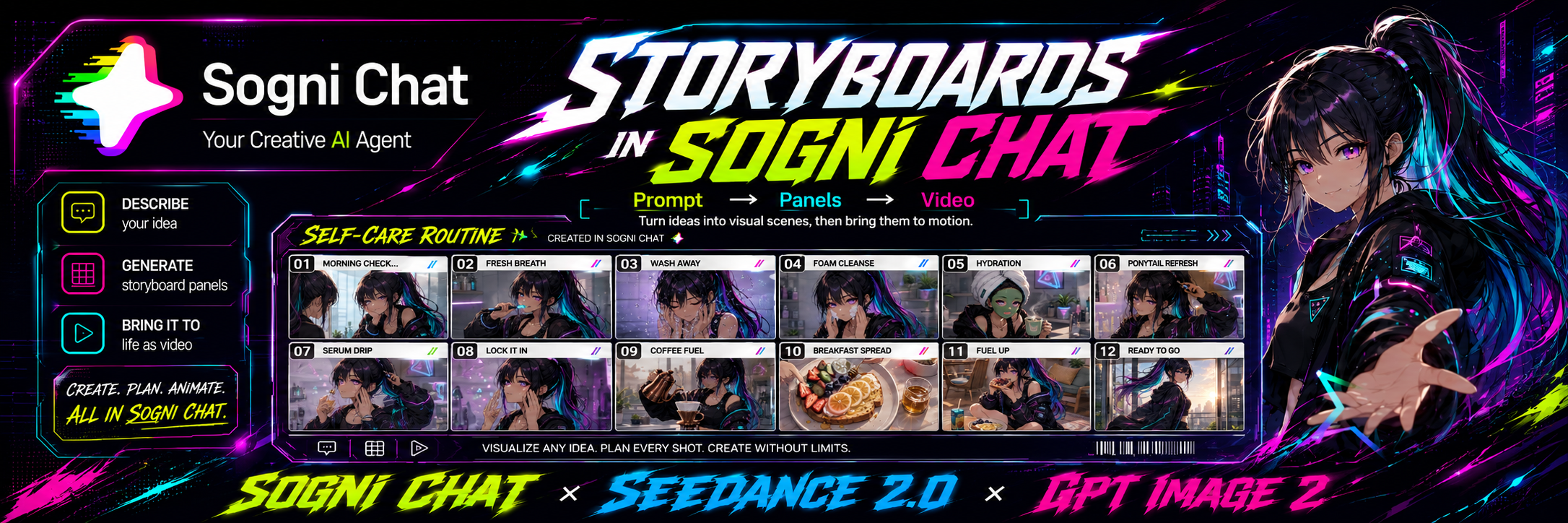
Storyboards that move. One chat, prompt to video.
Storyboards used to be the slowest part of any video project, sketch the hero, lay out the beats, hand the sheet to an animator and pray nothing drifts between frames. Sogni Chat collapses all of that into a single conversation.
You describe a character, GPT Image 2 renders a clean reference, then a storyboard sheet with timecodes and on-screen captions. Then you hand the sheet back to the agent and Seedance 2.0 turns it into a finished social video, all inside chat.sogni.ai.
The walkthrough below follows one real chat session: a cyberpunk anime heroine living through her morning self-care routine, shown here as one storyboard example that becomes a finished clip.
Want to make a video like this? Follow the step-by-step walkthrough below and this exact flow takes you from the first prompt to the final render in Step 09.
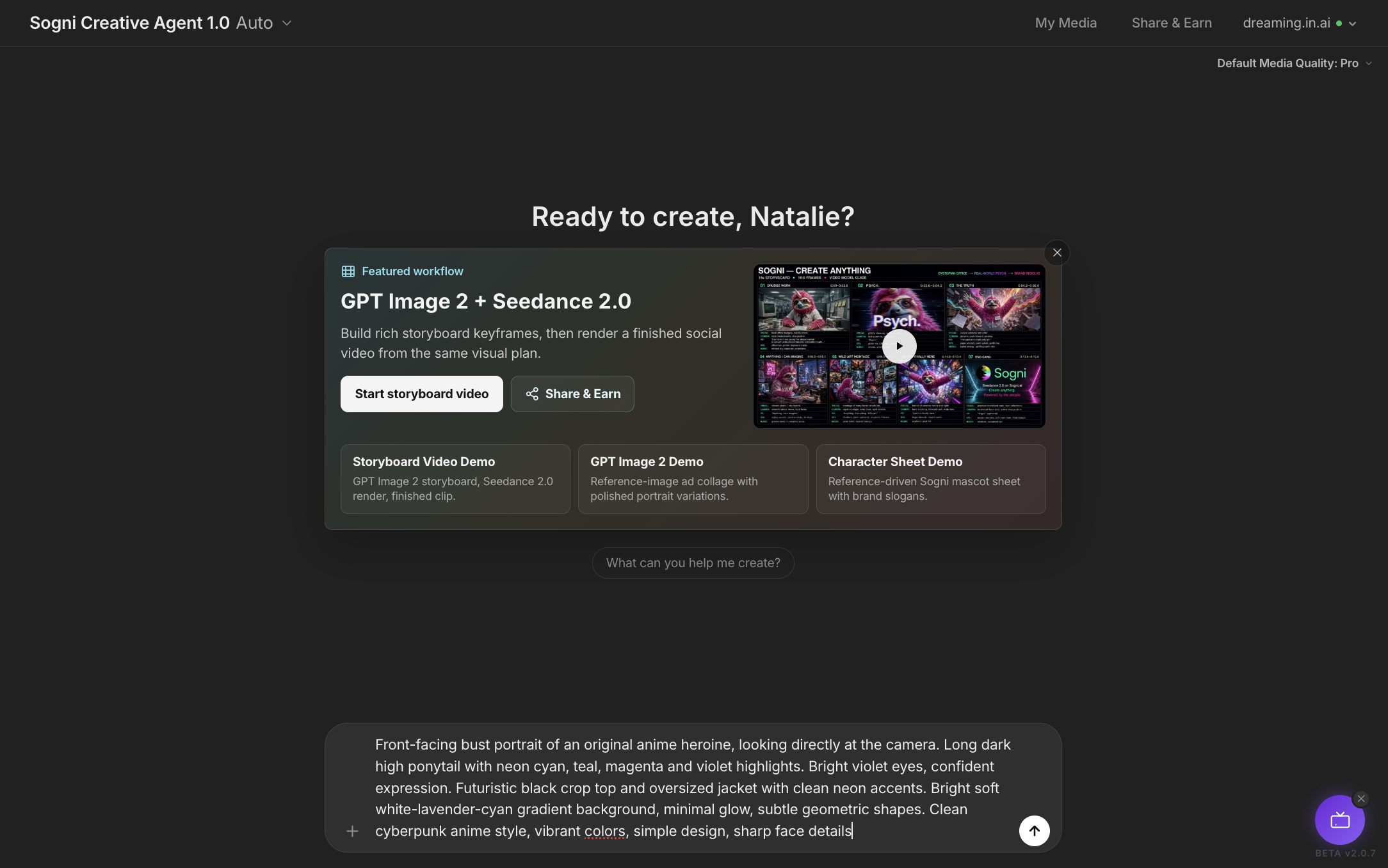
The welcome screen is already a workflow.
Head to chat.sogni.ai and the home screen greets you with a pinned Featured workflow — GPT Image 2 + Seedance 2.0 panel: build rich storyboard keyframes, then render a finished social video from the same visual plan.
Three demo chats sit underneath it so you can scroll, replay, or fork the finished result before you start your own: Storyboard Video Demo, GPT Image 2 Demo, and Character Sheet Demo.
Sign in to claim your monthly credits.
Hit Sign In and the Sogni mascot pops up to wave you through. Every account ships with 400 free Spark credits a month so you can take Sogni Chat for a real spin and see how the agent feels before you ever pay for anything.
No account yet? The Sign up link at the bottom of the modal takes a username and email, and you are creating in under a minute.
Worth knowing. Free monthly Spark goes toward Sogni's broader open-source model lineup. Premium models like GPT Image 2 and Seedance 2.0 are pay-as-you-go with Premium Spark, no subscription required. If you want to stay on the open-model side, newer options like LTX-2.3 and Wan 2.2 are there too.
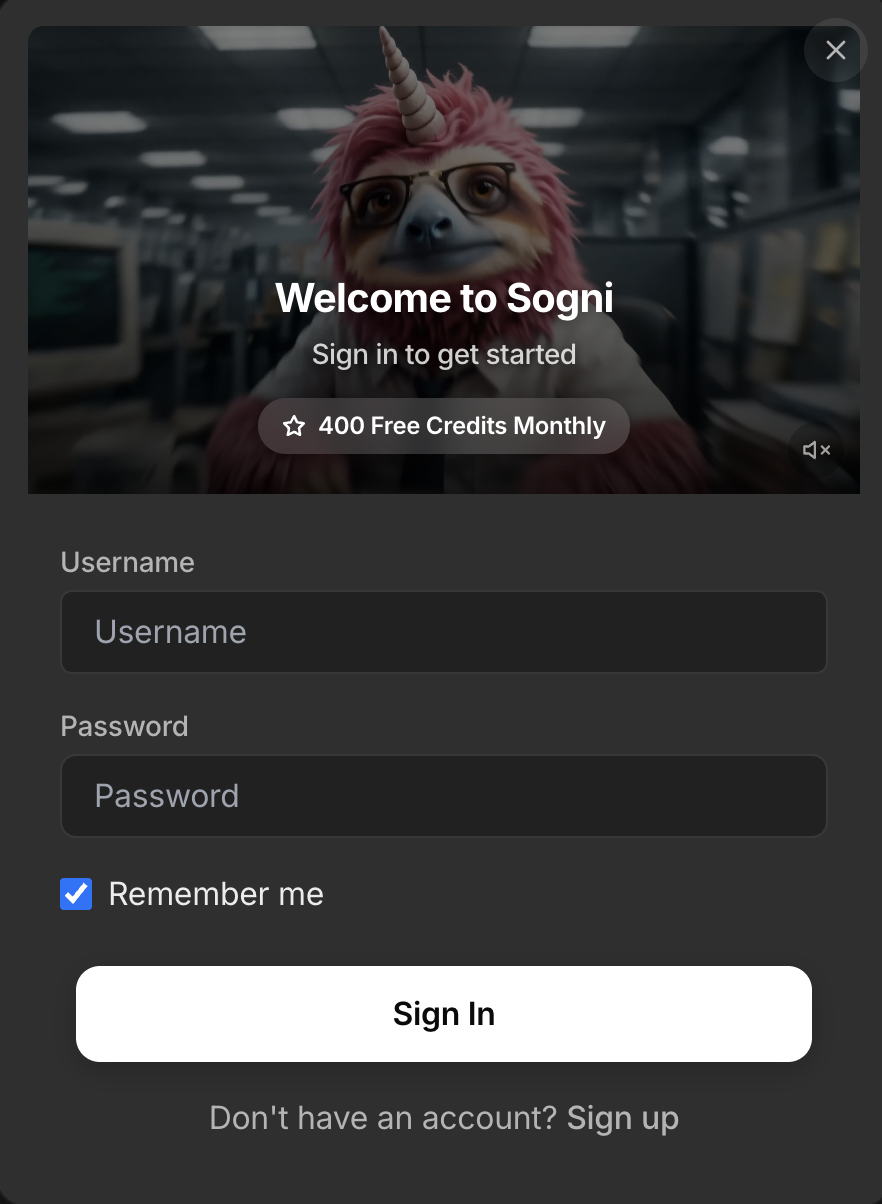
One tap on the featured tile, you are on the express lane.
Once you are signed in, the greeting flips to "Happy creating!" and the Featured workflow tile is still front and centre. Click Start storyboard video and the agent pre-loads the right prompt shell, the right model chain, and the right confirmation flow for the GPT Image 2 + Seedance 2.0 pipeline.
Prefer to learn from a finished example first? Open one of the three demo chats underneath and the entire conversation, prompts, reasoning, panels, and final video, replays in the timeline.
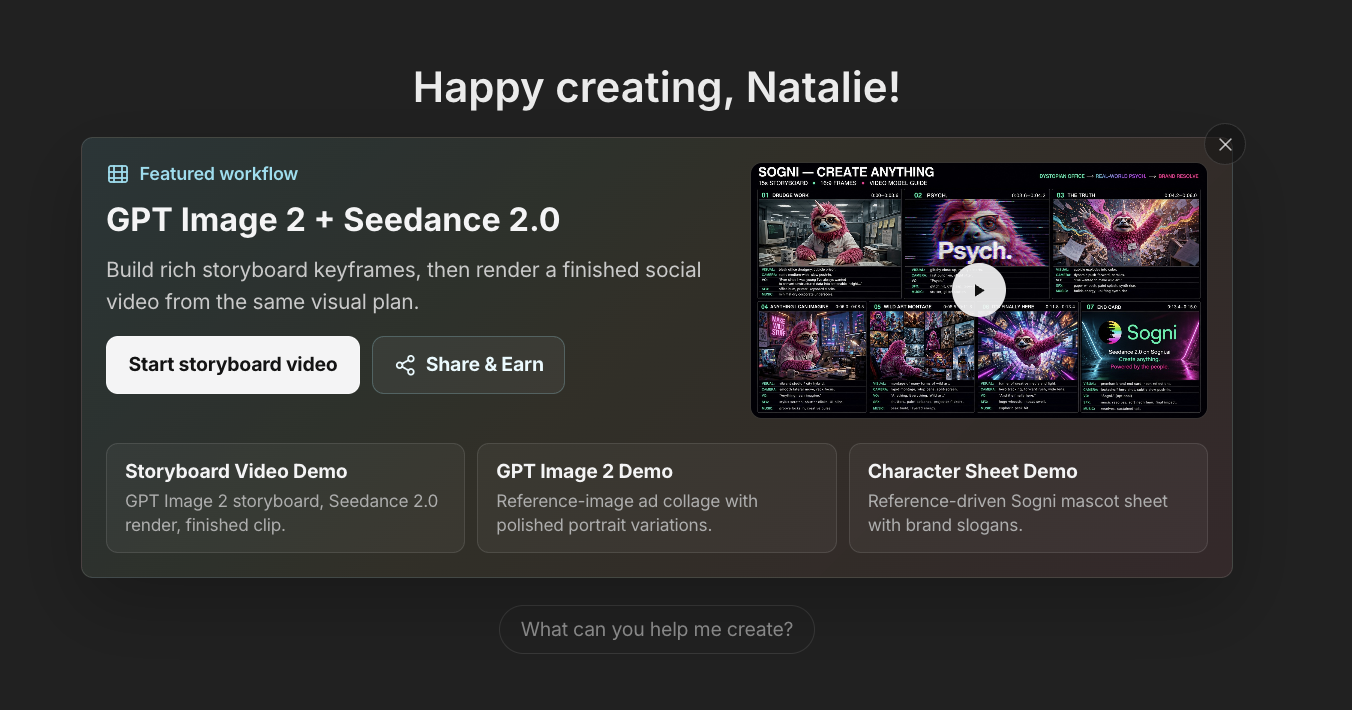
Two dials in the top bar. Pick once, the rest is automatic.
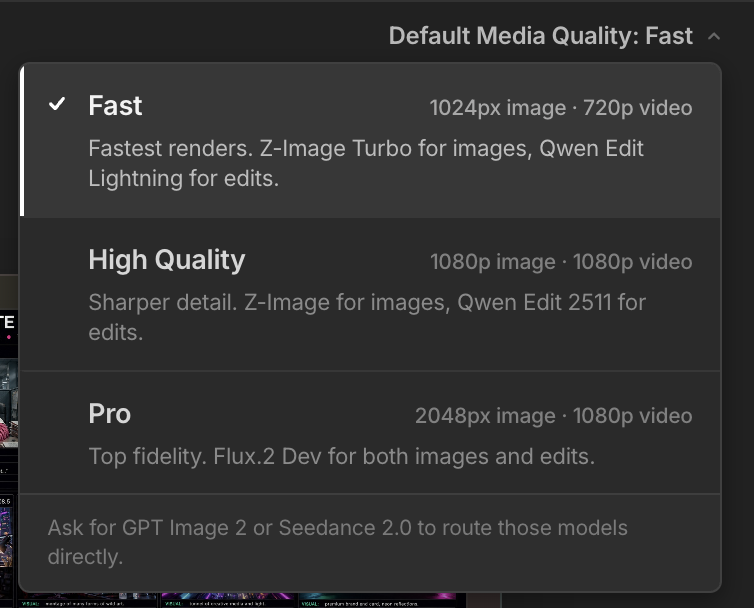
The top-right Default Media Quality menu picks the routing tier for images and video. Pick once, the chat carries it across every tool call in the session.
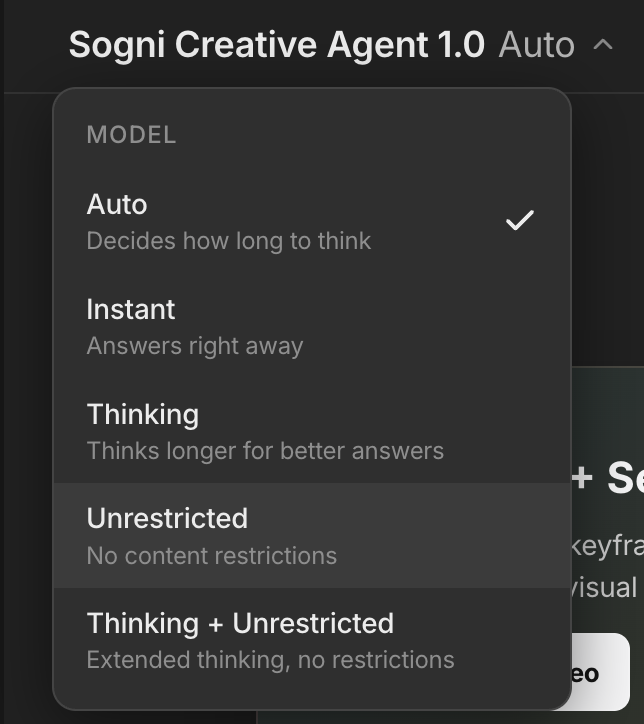
Up at the top-left, the Sogni Creative Agent 1.0 dropdown controls the brain. Five thinking modes, one click each.
Tip. Ask for GPT Image 2 or Seedance 2.0 directly in your prompt and Sogni Chat routes to those models even if your quality tier defaults somewhere else.
Write a portrait, or drop in one you already have.
You have two ways into the same workflow. Write the brief, the chat reads natural language, so describe your character the way a director would brief an artist, traits, lighting, mood, colour palette, and Sogni Chat translates that into the right call for the right model.
Or upload a hero you already have. Drag any character image into the composer (or click the + in the chat box) and Sogni Chat will treat it as the source of truth for everything that follows, the storyboard, the panels, and the final Seedance render.
Don't know how to set up a Persona? Take a look at the dedicated walkthrough: Meet your Personas — your face in every render. Once your character is saved, the agent recognises the name and locks the identity across every panel automatically.
That single message is enough. The agent picks the right image model for the quality tier you set, queues the job, and hands you the cost-confirmation panel before a single Spark is spent.
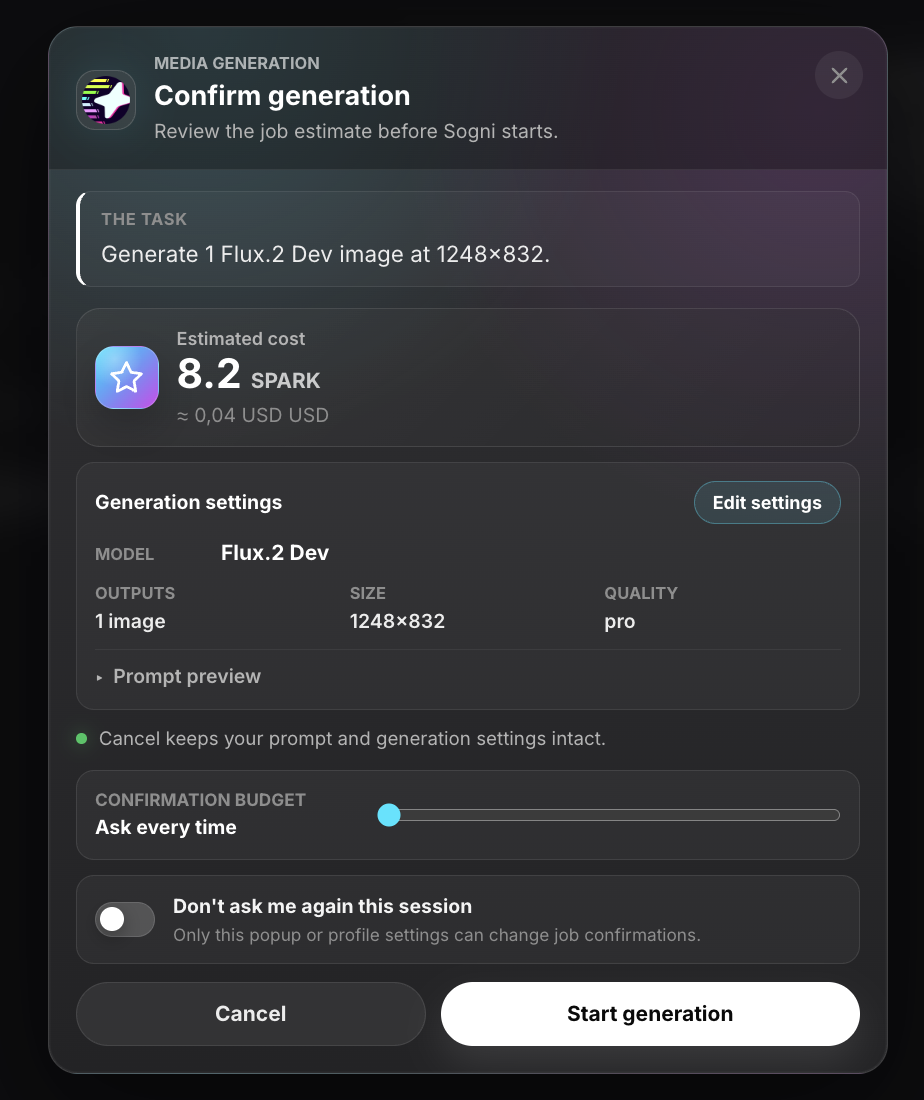
Every job estimates first. You decide when to spend.
Before any media generation runs, Sogni Chat opens a Confirm generation panel with the exact job estimate, the model (Flux.2 Dev on Pro), the output size, the quality tier, and the cost in Spark credits. For this character bust it's 8.2 Spark, about $0.04 USD.
Want to silence this dialog for the session? Toggle Don't see me again this session. The confirmation budget setting lets you go from Ask every time to fully automatic, in case you trust the agent and want longer chains to run uninterrupted.
Want the bigger picture? Learn more about Sogni pricing, Spark packs, and job estimates before you run a larger workflow.
The first render lands. From here on, the character stays locked.
A few seconds later, the chat streams in the result, a sharp bust portrait of your cyberpunk anime heroine, jewel-toned hair, violet eyes, the exact jacket and crop top you described. The agent commentates as it goes ("Perfect — your original anime heroine is looking fierce!"), then asks the next question for you: "What are you thinking for her? Want to animate her into a short clip, generate some action poses or different angles?"
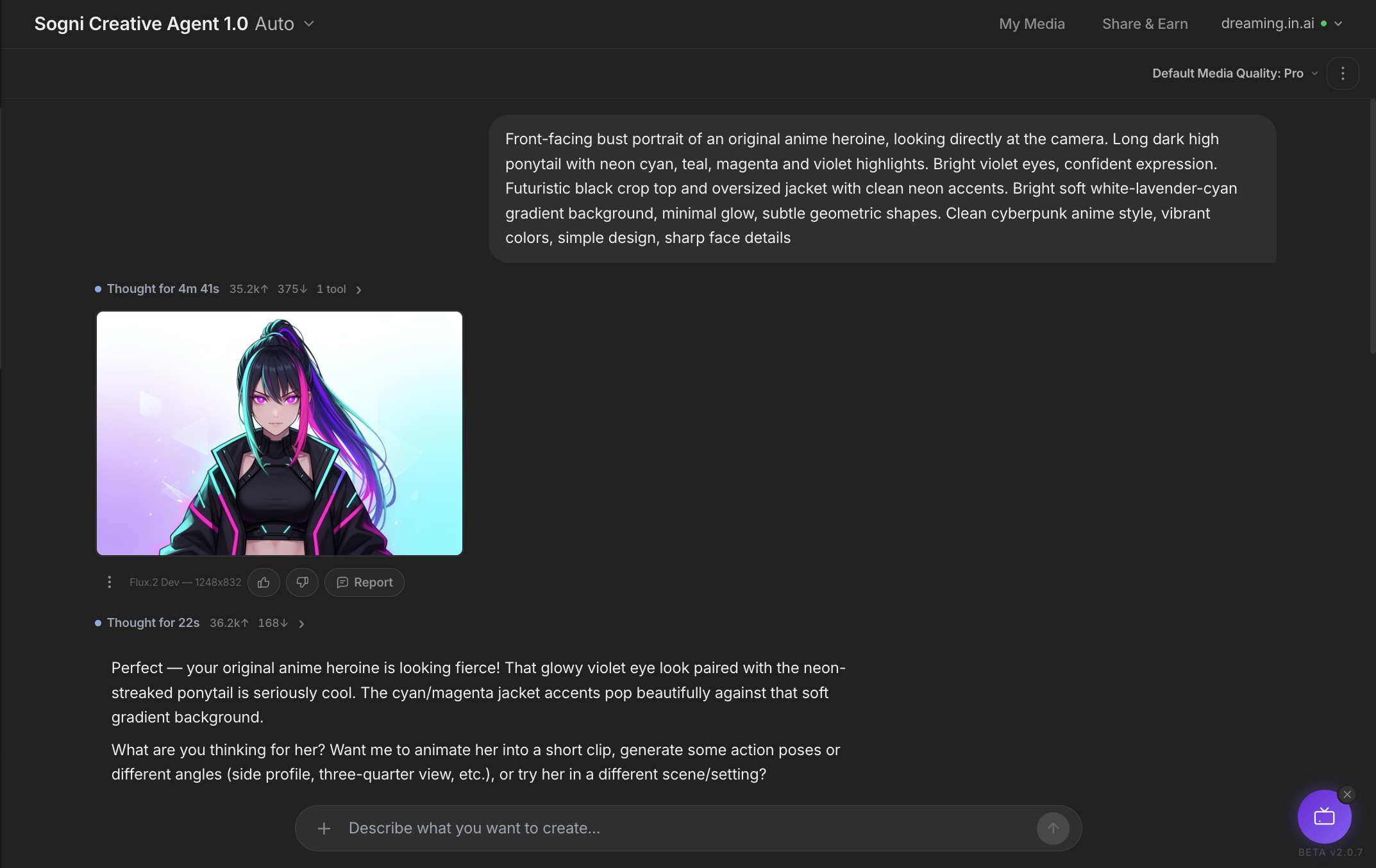
The character now lives in the conversation's asset manifest. From here on you can refer to "her", "the cyberpunk girl", or "the last image", and the model knows exactly who you mean across every future turn.
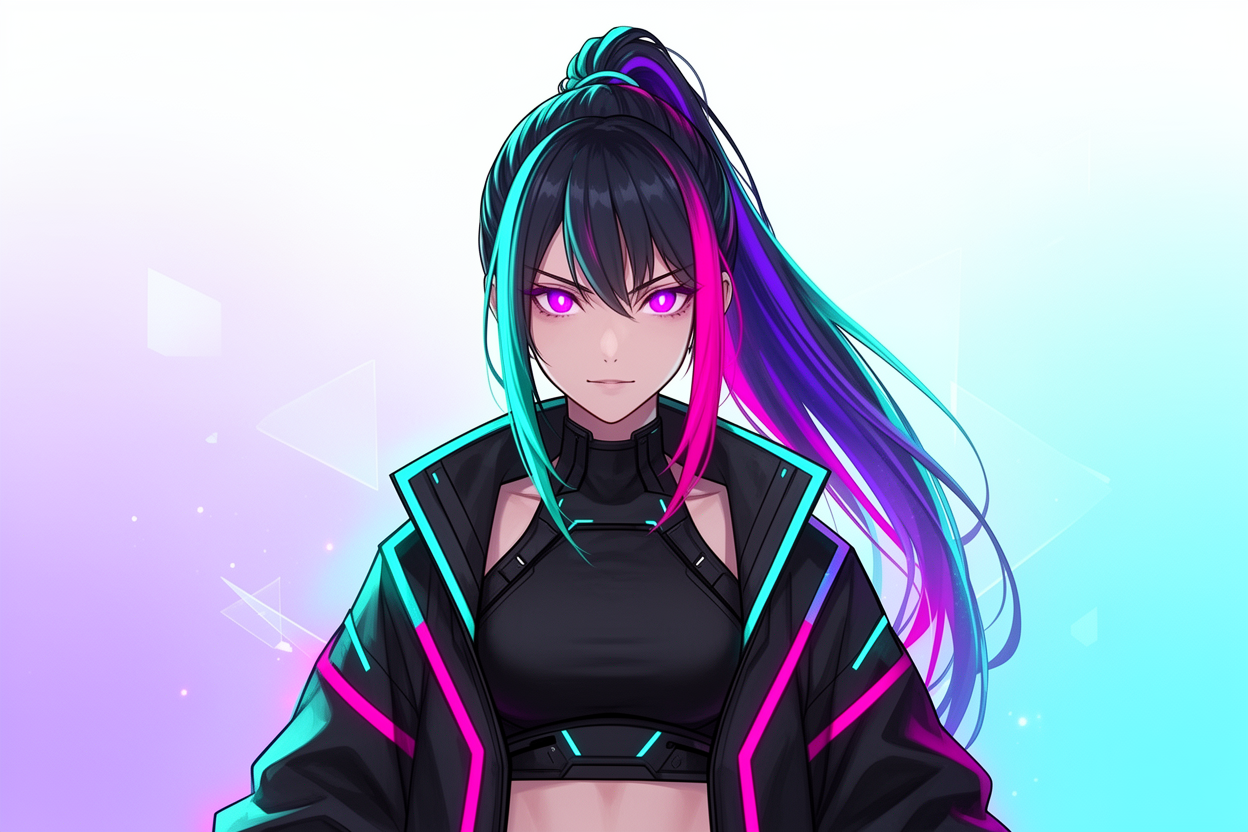
The streamed result inside the chat, and the full-resolution character on its own. Same hero, ready for the storyboard.
One brief, any panel count, one printable sheet.
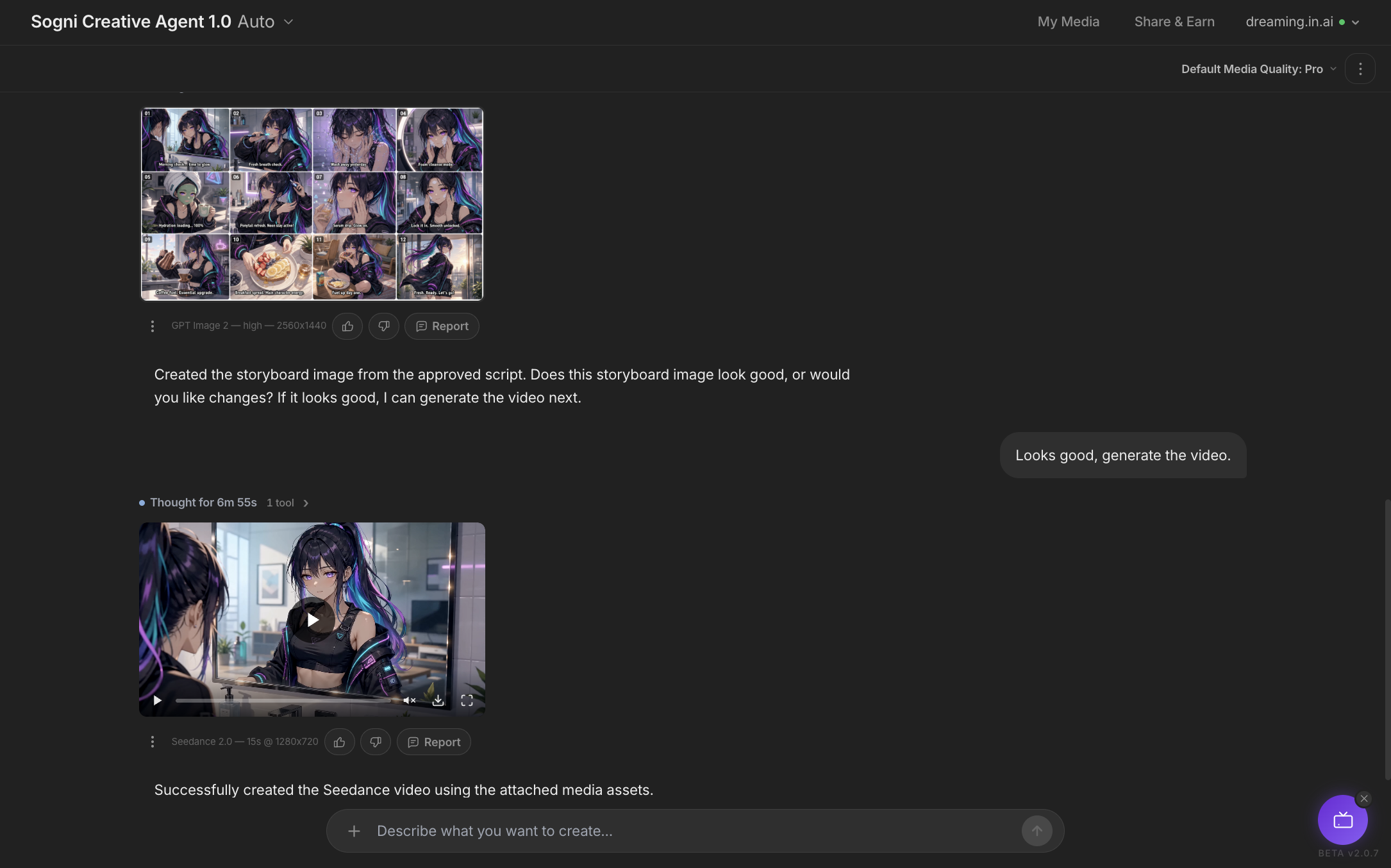
Now hand the agent a structured beat list. Describe a story, a routine, or a tonal arc, and tell it how many beats, shots, or panels you want, what aspect ratio you want, and how long the final video should be. Sogni Chat composes a single storyboard sheet, every panel drawn in sequence, with on-screen text overlays for each beat.
No idea what your storyboard should be? Just ask for a storyboard with this hero and let the chat figure it out, theme, beats, captions, the lot. If you want a specific count or format, say it directly in the prompt, six panels, twenty panels, square, vertical 9:16, widescreen 16:9, or however many beats the story needs. Sogni Chat fills in any missing creative details and hands you back a finished sheet to react to.
Why one sheet instead of separate panel calls? Because rendering all panels together locks the character design across every beat, same face, same hair, same outfit, same lighting language. That consistency is what makes the next step (turning it into video) actually work.
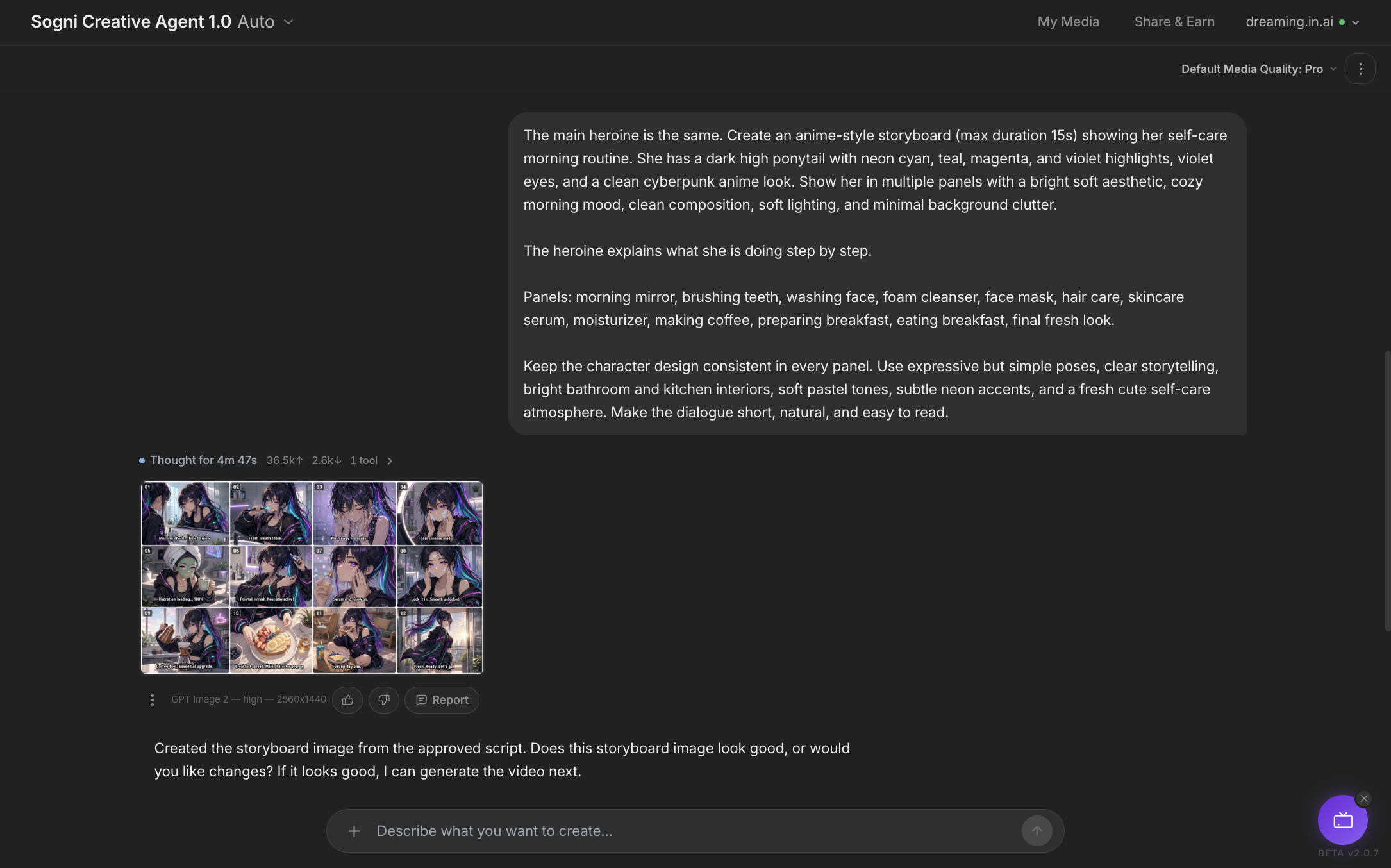
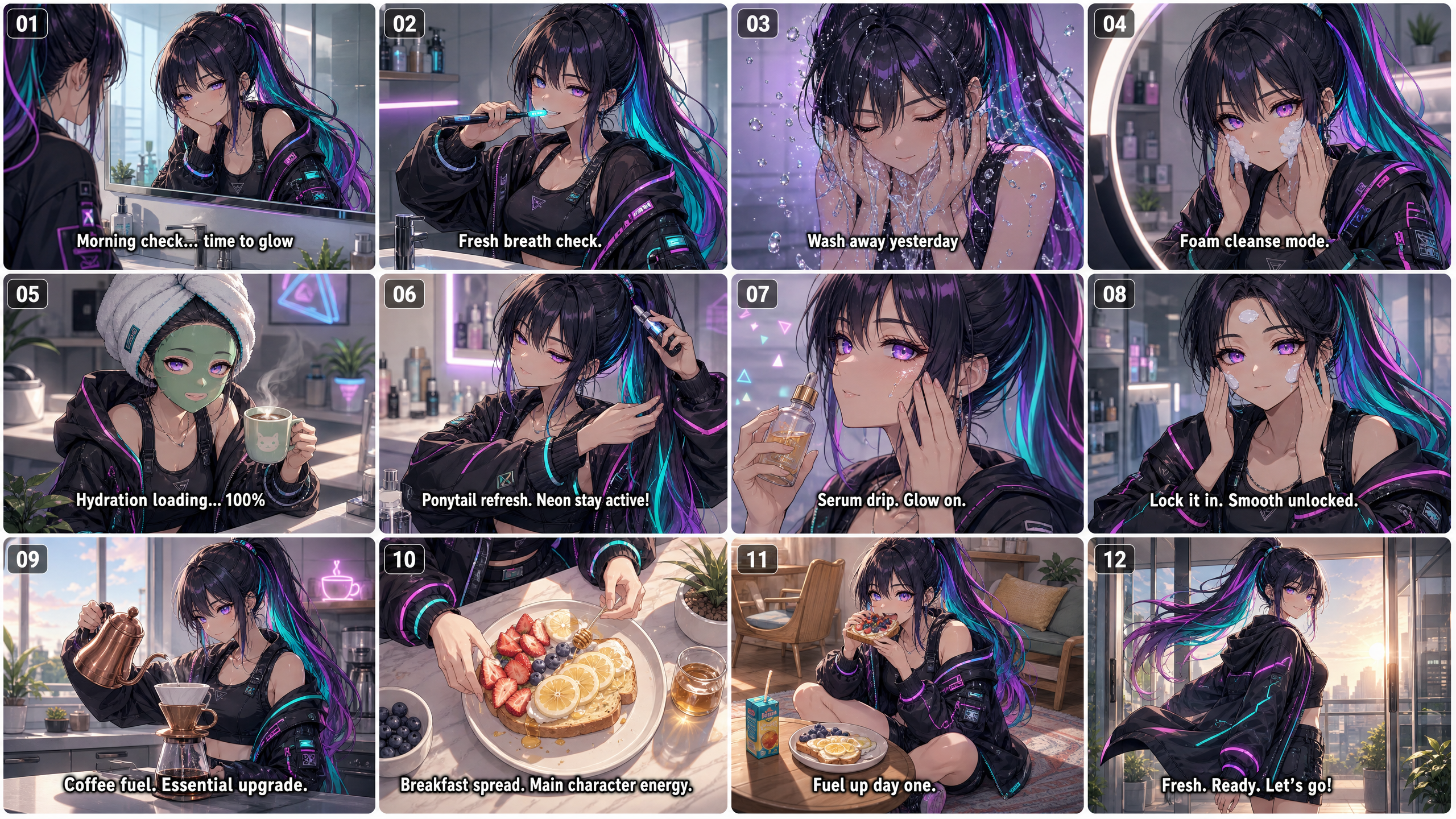
Hand the sheet to Seedance 2.0. The storyboard becomes the shoot.
Two ways to fire it off. Reply with "Looks good, generate the video.", or just tap the button that appears right under the finished storyboard. Either way the agent feeds the sheet into Seedance 2.0, treats every panel as a keyframe, and stitches motion, transitions, and pacing between them, the same heroine, the same outfit, the same lighting, now actually moving.
One short line. Seedance does the rest. The chat confirms "Successfully created the Seedance video using the attached media assets." and drops the finished clip straight into the timeline, native audio included.
Want a different feel? Swap one word in the prompt and the agent re-routes to LTX 2.3 or Wan 2.2 instead. Same storyboard, different render rhythm, the character stays locked the whole time.
Hit a snag? Tap the three dots and tell us.
Every chat in chat.sogni.ai ships with an in-app feedback shortcut. If something looked off, a render broke halfway, the agent picked the wrong model, the storyboard skipped a beat, you don't need to leave the conversation, switch tabs, or hunt for a support page. The team can see exactly what you saw.
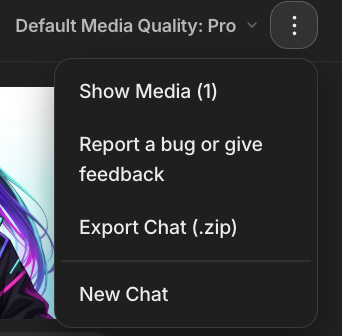
In the top-right corner, right next to the Default Media Quality badge, you'll find a small three-dot icon. Tap it and a compact menu drops down with four entries: Show Media, Report a bug or give feedback, Export Chat (.zip), and New Chat.
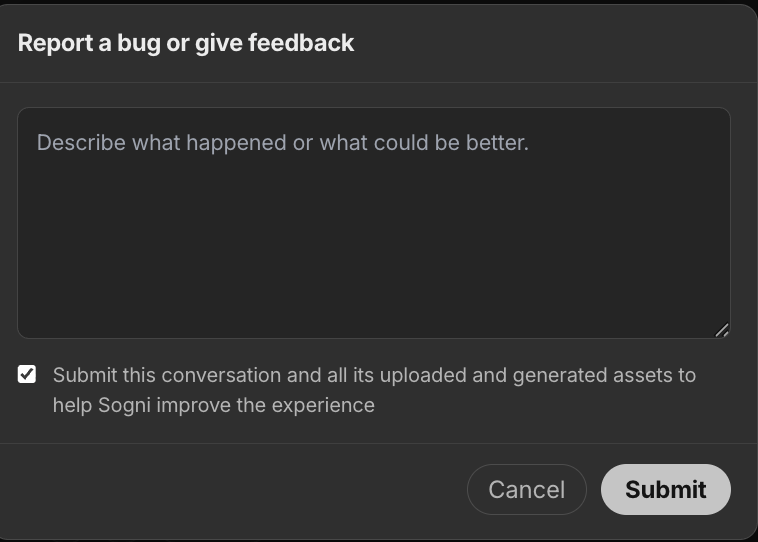
Pick "Report a bug or give feedback" and a clean modal opens. One free-text field, one toggle, two buttons. Tick "Submit this conversation and all its uploaded and generated assets" so the team gets the full picture, hit Submit, done.
Why it matters. Bug reports with the original conversation attached take a fraction of the time to triage, the team sees the exact prompts, the exact assets, and the exact route the agent took. The fastest fixes always start here.
One chat. One hero. From description to a storyboard to a finished video.
That is the whole point of Sogni Chat. The same conversation that drafts your character drafts the sheet, the same conversation that drafts the sheet drafts the video. Every step is metered, every step is reversible, and the asset manifest keeps your character locked across all of it.
Start with a sentence, end with a clip. Then save it as a Workflow Template and the next morning routine, product demo, or social spot is one prompt away instead of a pile of separate panel calls.
When you're ready, keep going with the rest of the workflow:


